
When Digital Signage is activated and installed in the store, you can start sending playlists to the digital screens.
The templates that you send to the Player or the channel must be adapted for digital signage. The most common format is 16:9 but it may differ depending on the aspect ratio of the screen.
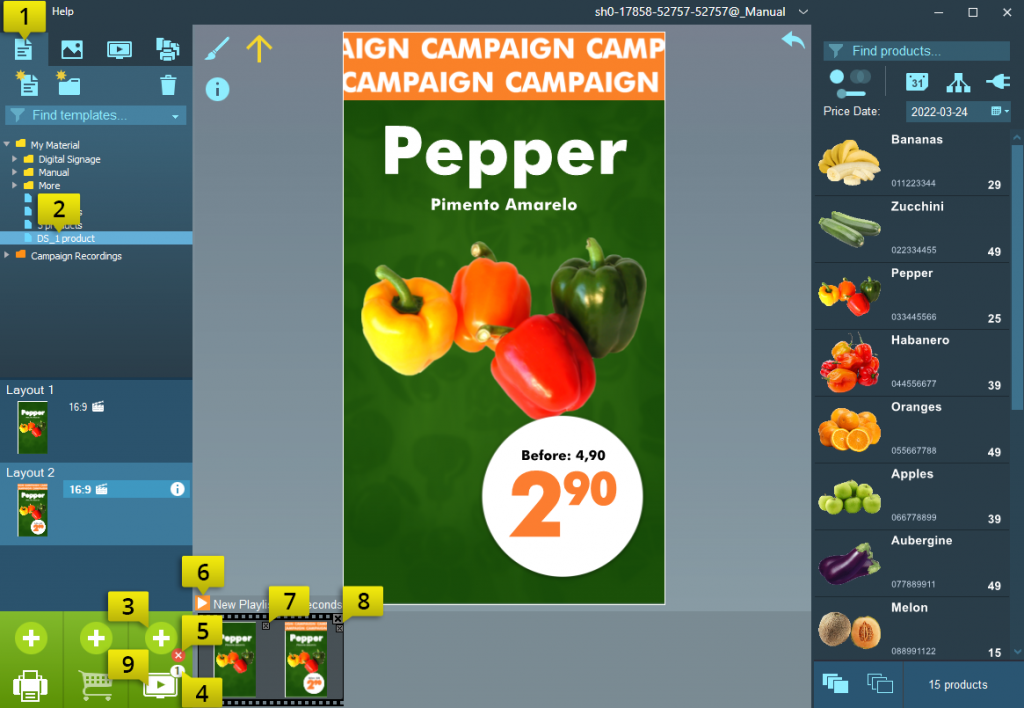
A digital signage template is indicated by an icon of a movie clip next to the layout format.
If the template contains several layouts, all will be queued.
Send material to a digital screen:
- Select the Template tab
- Select a template that has content customized for a digital display
- Click the plus icon to queue the sign
- A number next to the screen icon shows how many signs are in the queue
- The timeline gives you an overview of what will be displayed on the screen.
- Click Send to screen
- Select how you want to send the material. Play instantly, schedule or save to file.
- Select the channel or screens that the material should be sent to and click Ok
- The material has now been sent and within fifteen minutes the screens will play the new material.
There are three different ways to send material to screens:
- Play Now - Sends the playlist directly and plays it until you delete / update the playlist
- Schedule playlist (Requires addon) - Plays the material on a specific date and time
- Save to file (Requires addon) - Saves the playlist to a video file (.MP4) that can e.g. be copied to a USB stick for playback via the USB port on your screen
