
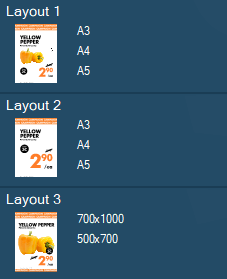
Templates are in the most basic form a type of sign with a specific purpose. In a template you can enter information that should be visible on the finished sign. A template can consist of one or more layouts and formats.
Example: Product template, Opening hours template, Information templates.
Layout In a layout the content is adapted to the appearance and proportion of the format.
Example: Landscape, portrait and shelf label formats, with or without image.
Format Are the physical sizes of the printouts.
Example: A4, A3 and 500 x 700mm.
All layouts contain at least one format. Formats that have the same or similar proportions are grouped under a common layout. These are automatically linked together and in the event of design changes, all formats in the associated layout are affected so that you do not have to make the same adjustment in each format.

When in the design mode you can manage which formats and layouts that should be available in the template by pressing the Manage Layouts and Formats icon next to the formats and layout window.
The right window lists all formats that are created for your account and the left window displays which formats that are added to the template.
Add a format to a template
From the list of available formats, select the formats that you wish to add to the template and press the “Use” button. This will move the formats to the right window.
Add a label format to a template
A label format is a format that is designed to be printed on an A4 but divided into multiple signs. This is often used when you use a perforated paper to be able to print multiple shelf labels at once.
Select the box for Label Formats in the Available format window. Within the preview window you will see how the labels will be placed on the paper and what dimension the labels have.
Create a new format
If the format that you want to add to the sign is not available you can create a new format to use within the templates. Press “New” and choose the name and the dimensions of the format to save it to the list.
Once the format is saved you can add it to the template just like any other format.
Create a new label format
If the label format that you want to add to the sign is not available you can create a new label format to use within the templates. Select the label format checkbox and press New.
Set the standard format to use, this will be the same as the paper size the signs will be printed on.
You can then select how many rows and columns to get the right number of labels for the paper.
You can also add margins, gutters and offsets to make sure the format correctly matches the paper that you are printing on.
Add a format to an existing layout
To add a format to an existing layout, select the format and then click the layout name and press use.
