Shoppa helps you save on printing paper. An example of this is that Shoppa when printing automatically places two A5 formats on one A4.
Queue signs and print
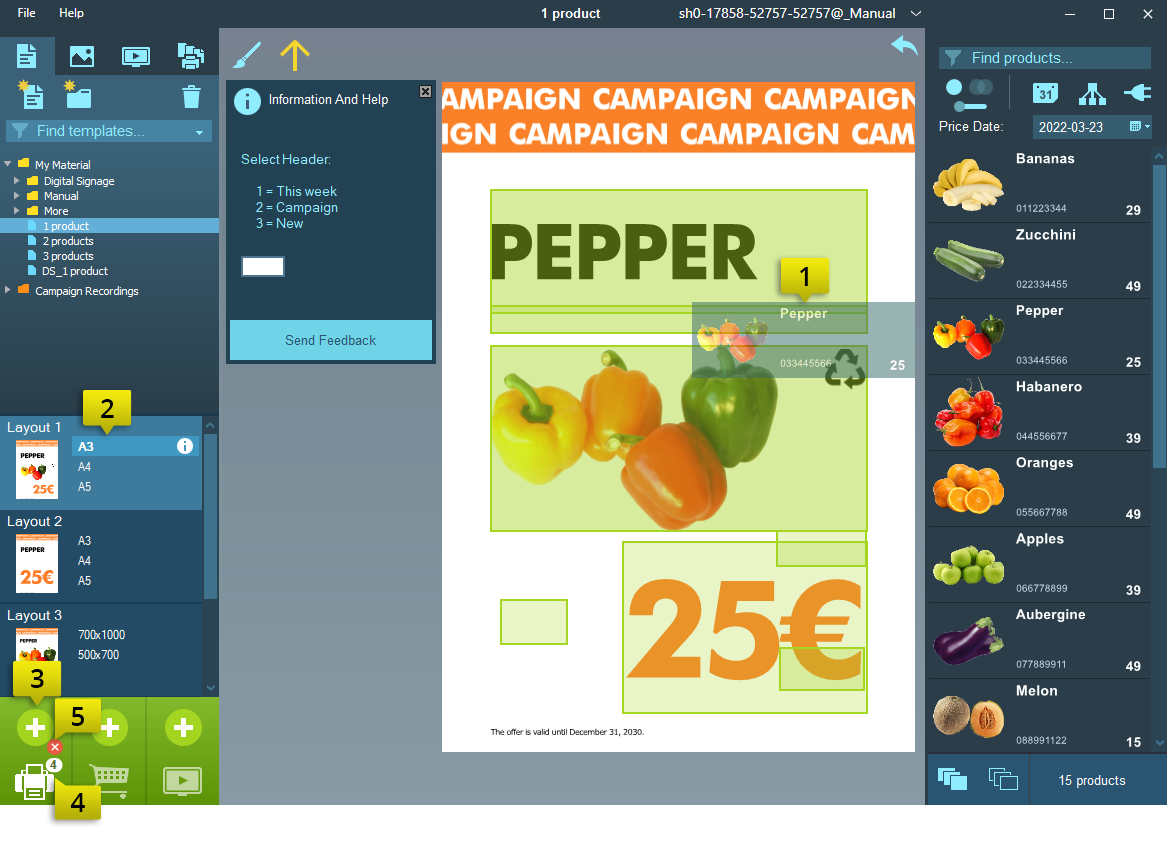
- Drag and drop a product to the template
- Select the format
- Click on the plus icon above the printer icon to add to the printer queue
- Click the Printer icon to print, Shoppa prints all the queued signs at once
- To clear the queue, click the red cross icon between the print and the queue icon
Shortcuts
Ctrl + Q – Queues the active sign
Ctrl + P - Prints the queued signs
Tab - Selects the next editable field in the template
Shift + Tab - Selects the previous editable fields in the template
Print multiple copies
- Drag and drop a product to the template
- Select the format
- Click on the plus icon above the printer icon to add to the printer queue
- Right click on the plus icon and enter the number of copies and click Ok.