
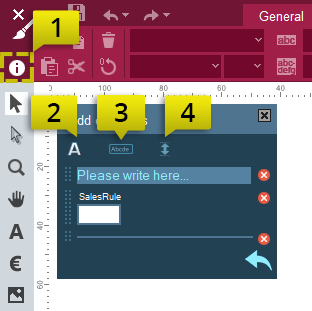
- Open the information box.
- Click add text and a box will be displayed where you can type in information. There are two different ways to add input boxes to the information box:
- Add a tag to the box, then select the tag and click on the button “add field” in the information box. (See the picture below). Drag a tag from the tags to the information box.
- Click add space to add a space between different paragraphs.


Send feedback
Send feedback is located in the information box which Plus users can use to send feedback on various templates. It is a useful way to receive valuable information such as ideas of improvement, reports of faulty templates or text and price corrections.
To enable feedback, please contact support@shoppa.com with what email adress the feedback should be sent to.

Feedback
If you find an error or would like to request a change for a template, you can use the feedback feature to send a message to the template manager.
You can access the feedback feature by clicking on the i-icon within the template area and then clicking on the “Send feedback” button.
- Click on the I-icon within to the upper left of the template area.
- Click “Send Feedback”
- Type in the information you want the template manager to see
- A screenshot of the active template will be included in the message. You can also highlight the error with the pen or mark tool.
- Mark tool used to highlight the error
- Pen tool used to highlight the error
- Reset the screenshot to default
- Click Send
Always leave a note
It is important that the feedback contains descriptive text about the error you found. Include a description of the issue so the template manager knows what to fix and include an email address in case the template manager wants to contact you.
