Printshop is a service used by many of our customers for ordering prints.
We offer high quality, fast delivery and the best possible price.
With Shoppas printshop service you can order prints ranging from shelf labels to sticker banners and large formats directly via the Shoppa application.
We deliver within Sweden
When you order your printed sign material before 12:00 on weekdays we aim to have it sent the same day.
New formats, new opportunities
Printed communication can be so much more than just large format and A4. Take advantage of the store’s communication surfaces by using different formats with different messages.
Design help?
If you need creative inspiration and ideas for new ways to communicate – let Shoppas Creative Studio help you. Email to: creativestudio@shoppa.com
Queue signs to Printshop
Queue the signs you wish to order to the printshop cart
If you wish to empty the cart, click the red icon.
A number next to the cart will indicate how many signs you have queued.
When your signs have been queued, click on the Send order (cart) icon.
Step 1 – Order overview
If you have a Printshop linked to your account, you will have to go through three steps to complete your order. Step 1 is the Current Order.
In the column marked sign, you can see previews of your queued signs
In the format column, you have the option to change the size before sending your order
In the last column, marked copies, you can reduce or increase the number of copies for each sign and delete formats
Click Next
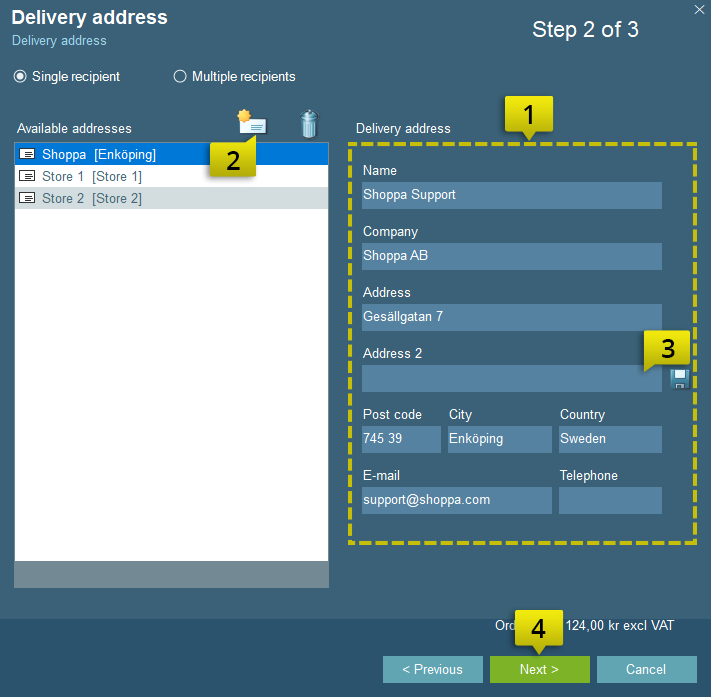
Step 2 – Delivery information
Fill in your delivery address in the form
If you want, you can add more addresses by clicking on the letter icon
To save the address, enter it in the field “Address 2”
Click Next
If you wish to order for multiple stores you can select the multiple recipients checkbox.
The Available Addresses window will display every saved address.
To add more delivery addresses, click the plus icon next to the address.
Once every address that the order should be sent to has been added you can proceed by clicking Next.
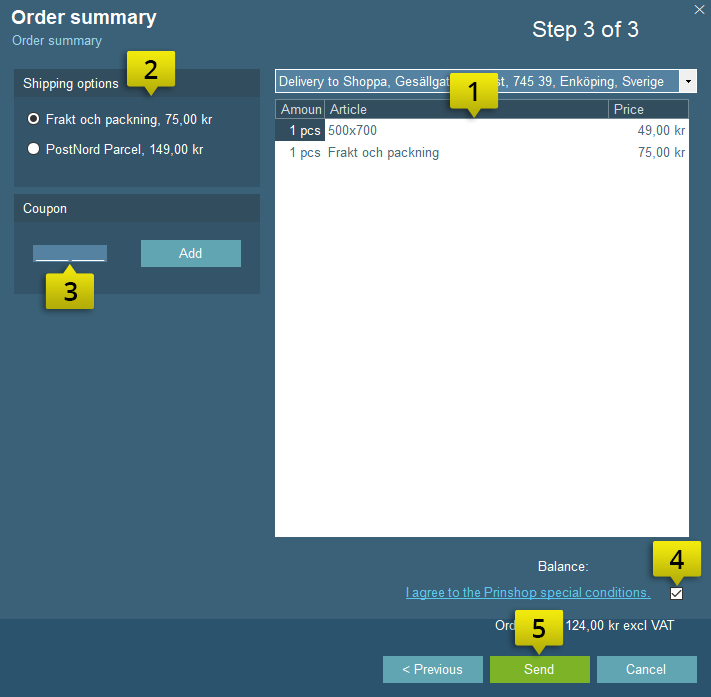
Step 3 – Confirm order
Review your order
Select Shipping options. We recommend the parcel option which provides faster delivery times and the ability to track the order.
Enter any discount code in the coupon field.
Accept the terms and conditions
Click submit to complete your order.
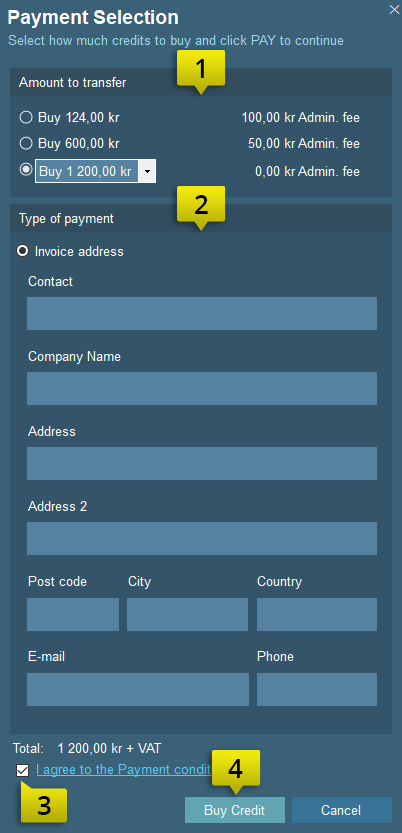
Step 4 – Payment
If you do not have enough funds in your Shoppa account, the Payment Options box will appear. You can choose to be invoiced only for the current order or to add additional funds for future orders.